Vectopalm · Vector graphics · 3D · AI
Ideas become
vectors.Create vector graphics and 3D models – in the browser and on Android
Trace images as clean vectors, edit every curve precisely and turn your drawing into a 3D model – together with your AI assistant if you like.
01 · GUIDE
All features at a glance
The Vectopalm V42 feature guide explains every tool step by step – as a PDF to read or print.
Open feature guide (PDF) →02 · ACCOUNT
Your customer account
Register, confirm your email address or sign in to your existing account.
Open customer account →What Vectopalm can do
VECTORISE
Turn images into vectors
Load a photo, sketch or logo and trace it: algorithms fit the curves to the image edges, and you add the finishing touches in node mode.
3D MODE
From 2D to 3D
Extrude, revolve, fillet and shape freely – true to size in millimetres. Export your model as STL for 3D printing or as STEP for CAD.
AI ASSISTANT
Draw in conversation
Connect your AI assistant to Vectopalm via a connector: it sees your drawing live, draws along and builds 3D models – while you stay in control at all times.
FREE SVG LIBRARY
Over 12,000 free SVG artworks
Search for an artwork, drag it into your drawing and keep editing it as vector curves.
Open the Free SVG Library →FREE 3D LIBRARY
3D models right inside the app
In 3D mode, search ready-made models, drag them into your own model and keep editing.
EXPORT & IMPORT
All the key formats
SVG, PDF, PNG, JPG, WebP and DXF – plus STL and STEP in 3D mode. You can import SVG, PDF, DXF, images and STL.
Welcome to Vectopalm
Vectopalm combines assisted contour capture with precise handwork: two coordinated workspaces show the reference and the vector geometry side by side, while Smart Guide, Magnet Mode and dimensioning in millimetres help with the finishing touches. The app runs in the browser and on Android, with finger, mouse or stylus – and saves your work automatically.
Try it for free: The demo version includes everything except saving as a file and exports. For the full version, choose a monthly subscription or the lifetime licence.
Vectopalm on Google Play →Frequently asked questions
How do I turn an image into a vector graphic?
Load the image as a reference, trace its contours with one of the algorithms, refine the curves in node mode and export as SVG, PDF or DXF.
How does a drawing become a 3D model?
Select your curves, start 3D mode under “Effects” and, for example, extrude or revolve them. Export the finished model as STL or STEP.
How do I connect my AI assistant?
Add a connector with the address https://vectopalm.com/mcp in your AI assistant and pair it once with the code from the app’s AI panel. You don’t need an AI key.
Vectopalm combines assisted contour capture with manual control – from the first trace to the finished 3D model.
03 · PRICING
Choose your licence
Choose the plan that suits you – both options include the full range of Vectopalm features.
Monthly subscription
€4.99/ month
Start flexibly, cancel at the end of any month.
- Full range of features
- Use in your browser or on Android
- Export as SVG, PDF, PNG, JPG and WebP
- Cancel monthly
Lifetime licence
€119one-time
Pay once, use for good – worth it after about 24 months.
- Full range of features
- Use without time limit
- No recurring costs
- Use in your browser or on Android
All prices are final prices. No VAT is charged pursuant to Section 19 UStG. Secure payment via PayPal. A free customer account is required to purchase. Our terms and conditions apply.
Android Version
System Recommendations:
- Android 10.0+
- 8 GB RAM
- Multi-core processor
VECTOPALM · CHANGELOG · BROWSER & ANDROID
New in Vectopalm V42
All changes since version 41 at a glance: fixed bugs and new features for the browser and Android versions.
Show all changes
FIXED BUGS
Properties panel: a click on a button right after typing into a field at the bottom edge of the screen sometimes missed because the panel slid back under the pointer – fixed.
Ruler: the scale showed the page too narrow (A4 as 190 instead of 210 mm). It now shows true millimetres – 0 is at the left / top page edge.
Undo and redo now also work inside open commands (perspective, envelope, circular pattern, step and repeat, extrusion, text on path and the other effect windows): they step back within the command, which stays open and keeps working.
A preview that has not been confirmed is never released as a real object by undo and redo anymore; preview outlines can neither be selected nor edited until ✓.
Fit into shape: the outline of the frame lies above the fitted content again and is no longer covered by a filled object – on screen and in the export.
In the object manager the elements of a group can be selected and edited individually; in the lower node mode a colour only applies to the selected curve instead of the whole group.
The selection frame in the lower node mode encloses the whole curve, not only the area where nodes are.
Dimension elements (dimension line, extension lines, value) are no longer treated as editable curves in either node mode; they are edited only via the dimension tool.
When curves are joined in the lower node mode they keep their colours instead of taking on the default colour.
A scaled or rotated text stays in place when the text is edited afterwards.
Blend: the end of the guide curve no longer flickers and follows automatically when the source objects are moved.
Threshold: when a zoomed section is recalculated, “+” closes the gaps at the edge of the section; short template sections are no longer lost.
Without a template image the threshold slider no longer affects existing threshold results (they can still be made permanent with “+”), and freehand drawing at the top only works with the pencil. The algorithm switches stay switchable; the indicator at the bottom left turns grey when there is no template, all algorithms are off or the pencil is active.
File → New now also asks whether to save after the last state was loaded automatically.
The eyedropper takes over the fill or the stroke depending on the selected colour target.
Step and repeat: cancelling keeps the selection, and a long press no longer flashes the circular-pattern window briefly. Tapping again ends the command.
Extruding an object without a fill stays an outline; the stroke colour no longer becomes the fill.
Locked objects: a closed lasso gesture in node mode no longer deletes them, and node snapping, line snapping and XY guides no longer use them as targets.
Break: a closed contour is opened into one open path at the selected node; two selected nodes produce two arcs.
Menus and pop-ups always stay inside the window and become scrollable when space is short; the top bar no longer wraps briefly after rotating the device.
The finger-swipe edge detection (the four algorithm switches) works again with its original precision, intelligence and automatic smoothing.
The long-press algorithm now smooths all curves reliably. Previously some curves remained a dense chain of straight segments with broken geometry after releasing.
Zooming in the Bézier pen no longer creates an accidental line, because a zoom gesture is no longer mistaken for the start of drawing.
The top window always keeps the normal view of the template; it is never hidden by a white background anymore. The bottom window stays in crisp vector quality.
There is no longer an incorrect white or black background on first start and in node-editing mode.
Long-pressing the menu button now reliably opens the object manager on the desktop with the mouse too, not only by touch.
When joining two curve ends by dragging, no curve properties are transferred anymore, and the join node stays sharp until it is smoothed manually.
The threshold slider only rebuilds the preview on release; the real-time preview is not reduced and is made permanent only with “+”.
The object manager now sits visibly above the splitter, and objects can be reordered smoothly by dragging – without a stuck dashed frame.
Trimming now cuts along the true Bézier curve instead of the chord between two nodes – across other curves as well. A trimmed closed contour becomes a single open curve (also with the lasso), and trimming stays smooth even with many curves.
Smooth curves mixed with Bézier: if only some nodes are converted to Bézier, all remaining sections keep their smooth-curve property and the shape is preserved exactly. The smooth-curve toggle in node mode ☍ switches only the non-Bézier sections between straight and curved; Bézier sections are left untouched. Converting back to “straight” adopts the currently selected curve type. Display, export, hit testing, selection rectangle, trimming and double-click insertion all follow the same curve.
Undo and redo keep the complete multi-selection (curves and selected nodes) as well as the pivot point instead of falling back to a single object.
Two-finger zooming in the top-level node-editing mode no longer selects or moves anything – even if the first finger lands on an object.
Coincident nodes: if a node lies exactly on top of a node of another curve, the node of the selected curve is grabbed, not the one underneath. Nodes take priority over Bézier handles.
The start node of a closed contour is highlighted in blue again while moving.
English interface: some messages (trimming selected curves, adding, removing and aligning nodes on several curves, opening a contour, pivot, saving and loading projects) as well as the curve count at the selection frame appeared in German – now translated.
The buttons around the selection frame in node mode ☍ no longer overlap on narrow, short or strongly zoomed-out objects; the node counter sits clearly below the scale handle, so the handle no longer accidentally reduces nodes.
Smart guides now only reference visible nodes, never the moved object’s own nodes and never derived blend steps – no more flickering when moving source objects or the guide curve.
Blends react immediately to changes of the acceleration; intermediate steps can no longer be selected by accident.
Hidden and locked objects no longer interfere with trimming, selection and snapping; the selection rectangle can also be dragged over filled areas; the eraser no longer starts during a two-finger zoom.
Sliders could no longer be dragged in Chrome after license activation – fixed.
Traced curves are subpixel-accurate; the half-pixel offset of new lines is fixed (also when loading older projects). Smoothing preserves corners, fitting is zoom-dependent, and the learning mechanism has been reworked.
Image analysis runs in the background: splitter and sliders stay responsive right after zooming; blur is only recalculated when something has changed.
Splitter: now follows your finger smoothly and without lag while dragging – also in the desktop view of mobile browsers and in 3D mode.
Portrait mode: the properties panel and object manager were lost when rotating the device – fixed. The pivot stays fixed when rotating repeatedly.
Keyboard shortcuts: sliders, checkboxes and buttons no longer hold keys (Delete works right after adjusting a slider); Delete/Backspace removes the whole selection in node mode. Accidental insertion when tapping text is fixed.
Node modes: when nodes are marked, switching between the upper and the lower node mode takes along only the curves with marked nodes (instead of the whole object); curves that touch them only with an end node – such as the edges to the opposite side of a marked contour of a formable volume – stay out. In a formable volume every frame marks anew, even when edges are already marked (first one side, then the base outline). Back again, the marking is exactly as before – back and forth as often as you like.
AI panel on phones: with the keyboard open, the whole panel moves above it – Send and Disconnect stay visible; swiping in the panel no longer moves the whole app; the note field keeps its text and the keyboard while the panel updates. “Send” sends a note on the first tap and keeps the keyboard open; nothing jumps any more after briefly switching to another app. Notes show “✓ read by Claude” as soon as Claude has received them. Dictation works with the keyboard’s microphone key.
3D mode: a colour bar shown by long press is hidden while the colour box controls the model display in 3D mode, and returns after “Exit 3D”.
AI connection, 3D: subtract and intersect now only affect the bodies the tool actually hits – all others stay unchanged (before, only the intersection of all bodies remained). Union only joins bodies that touch.
AI connection, 3D: moving and rotating a body changes only that body – sketches, revolve axes and other bodies stay where they are (a shaft no longer turns into a flat disc when rotated).
AI connection: a note in the AI panel no longer counts as a change. The AI can take back its own steps in 2D and 3D as far as needed, as long as nobody changed the objects concerned.
AI connection, 3D: height is the same everywhere – z is the height above the ground, positive up (bodies with negative z now also lie below the ground in the 3D window). Sketch planes report the exact conversion between drawing area and space, and the revolve axis “bottom”/“top” matches the position on the page.
AI connection, 3D: curves of earlier sketches no longer appear to the AI as drawing objects; extrude and revolve use exactly the curves given, and no stray helper lines remain in the drawing after finishing. Resolved error messages disappear from the status.
3D mode: sketches whose plane is seen edge-on in the lower window can now be tapped there – the line is selected and highlighted above (e.g. as profile for an extrusion); a double tap opens the sketch in its own plane.
3D mode: view from below – the page with the template now lies semi-transparently in front of what stands above it instead of seemingly behind it; whatever is below the page stays in front.
3D mode: “Fit” on the splitter also returns the upper window to the start view (ISO above the page, page and model fully in view) – so you always find your way back after zooming far away.
Assemblies: “Mate” with parts such as threaded screws no longer hangs – moved parts are not recomputed each time, tapping and the distance slider respond immediately. Sketches from the library are no longer written back rounded in the process.
AI connection: tracing a template no longer loses the edge, no longer depends on the zoom of the device and no longer returns fragments; “open” is no longer closed on its own.
NEW FEATURES
3D mode (Effects → 3D mode): a drawing becomes an object in space – right inside Vectopalm. The 3D window at the top for orbiting freely in every direction (circling with the finger rolls about the viewing axis), zooming and selecting – starting in true isometric (ISO), with all six viewing directions and saved views –, the familiar drawing area below with the live projection onto the page and the rest of the drawing as a grey reference (curves of switched-off algorithms not yet accepted with the flag stay hidden, as in 2D); the splitter stays movable. Edges appear in the 3D window as clean, continuous lines – round ones too. In 3D mode the Effects button reads “Exit 3D”: it places the object in the drawing as a group, and the 2D interface is then exactly as before. Undo still leads back into 3D mode and through its steps afterwards. In 3D mode the magnifier opens the Free 3D Library: search, bookmark and drag 3D models into the 3D window – they are inserted as editable parts.
3D mode – commands: extrude, revolve, sweep and loft on the four algorithm buttons; fillet and chamfer with scope (this edge, contour, all, along X/Y/Z) including spherical corners, at oblique corners too; circular pattern and row as an assembly, mirror, section along X, Y or Z with adjustable angle and a hatched cut face. The two sliders control the values, number fields take the exact dimension, and the check mark on the splitter applies. Without a command the sliders rotate the object about its centre of mass or a pivot you set, and spring back – the view of the 3D window never changes by itself. Every step stays editable. If a curved edge is bent more tightly than the radius or distance allows, the command says so (“radius too large for this edge”) and the body stays intact. Only one command runs at a time: starting a new one applies the running one – also between circular pattern, row, blend and fillet of the drawing area and the commands of the 3D window. Circular pattern and fillet in the tool row are marked active for the 3D model as in 2D, and tapping again leaves the command; a long press on circular pattern turns a new circular pattern into a row. The “Model display” menu closes when its button is tapped again.
3D mode – drawing in space: a long press in the 3D window opens the commands in place. “Draw on this face” aligns only the lower window; all drawing and node tools work as usual, and whatever you draw below sits in place above immediately. All curves of the model lie below as ordinary curves: nodes can be edited directly in every position of the object and also marked in the 3D window – the body follows. Planes can be remembered, curves of the greyed reference copied onto the active plane with “+” on the splitter, and freehand and pen draw space curves. In the 3D sketch the lower window shows the model exactly as seen above: draw and move nodes below, always parallel to the view, rotate above for other directions – with snapping to existing nodes, dashed guide lines between the nodes and an axis cross; curves can be converted into a 3D sketch. The commands for the body (edit or convert formable volume, scale, hide, delete) appear consistently on a long press on any face, edge and corner. Changes to the floor plan below appear in the 3D window immediately, without leaving 3D mode.
3D objects in the drawing: body edges, tangent edges (own stroke width in the settings) and optionally dashed hidden edges, each as one combined curve. The object moves as a whole; “Ungroup” gives an ordinary drawing with freely movable nodes. Long press on a line or right-click on a 3D object: edit in 3D mode, convert to a 2D drawing, combine several; afterwards one finger drags, rotates and selects as usual. The selection frame can also be dragged over a 3D object; “+” on the frame copies it as a 3D object, trimming never affects 3D objects – in 3D mode not even curves a body is made from. Space curves can be trimmed and get nodes added without losing their shape in space. New “3D” tab in the object manager (open, hide, lock, new), File → Save / load 3D object (.vp3d); the model travels in the project file.
3D mode – formable volume: a body becomes a “curve volume” – every edge a space curve, straight edges stay straight lines, the faces follow their boundary curves and the body always stays closed. Edit below with all node tools (handles, corner/smooth/symmetric, add and remove nodes) parallel to the view; shared corners move along, and a change that would fold the body is rejected. The history is kept: the floor plan and dimensions stay editable afterwards – the formable volume follows and keeps its deformations. Deformed edges of the base contour are taken over by the base sketch automatically. While dragging, the preview runs smoothly; after release the exact result appears: twisted and bent faces run smoothly, edges follow their curves exactly, flat faces stay flat. Finely divided and round bodies (ellipse, star) also stay free of spikes and cracks and follow the finger without stutter. A drawing tool ends editing the formable volume; a body drawn and extruded next to it afterwards stays separate and can be converted into a formable volume as well. Fillets stay smooth (points on the curves, soft transitions without a crease); while dragging only points and normals are recomputed and the finished formable volume is much lighter – threads follow smoothly too. When curves are selected explicitly (a contour tapped, or selected in the sub-node mode and taken along when switching), the selection frame hits only their nodes – as in 2D.
3D mode – rotating: dragging with one finger turns the view about the axes of the picture as in SolidWorks – horizontally about the vertical axis of the picture, vertically about its horizontal axis, without a stop; seen from above the object tilts instead of turning about the floor. The rotation follows the finger exactly and stops as soon as you let go; circling now turns only slightly about the viewing axis. The rotation is about the object in the middle of the picture – even zoomed in closely it stays in the middle while rotating. Circling turns the view opposite to the finger as in SolidWorks (circling clockwise → counterclockwise). The display follows the zoom seamlessly: closely spaced edges such as the threads of a model shown small fade out and the shading (with a soft highlight) shows the shape; zoomed in, curves are shown finer and smoother.
3D mode – scaling: long press on the object → “Scale …”. Dragging a corner of the frame scales evenly (the opposite corner stays), with a real-time preview; the factor can be entered exactly in %. The whole model grows with it – sketches, command dimensions, space curves.
3D mode – moving: the button in the middle of the splitter (four arrows) switches moving on; then you drag a part above directly with the finger, parallel to the view. Parts of a 3D group move individually. The planes are now on a long press of the same button. Bodies that touch – such as the head and shank of a screw – move together; the thread is kept when moving.
3D object in the drawing: if it is moved, rotated, scaled evenly or mirrored in 2D (for example with the frame in node mode), the model takes over the change the next time it is opened in 3D mode – before, it jumped back to its old size and position. A fill now fills the area the model covers in its view – as a separate area below the edges, openings stay free; before, every edge closed its own area and triangles appeared. The edges stay unfilled, stroke colour and width still apply to them. In 3D mode the fill is kept and tints the model slightly.
3D mode – assemblies and mates: several 3D objects grouped become a composite model whose parts stay fully editable; “Ungroup” splits it again. “Mate” aligns parts – coincident, parallel, axial, tangent, concentric, with distance and flip; mates persist and are kept after every change.
3D mode – perspective with adjustable focal length (above, below and in the finished drawing), vanishing points and horizon as guides. File in 3D mode: import STL, export STL and STEP (millimetres; export with a licence).
3D mode – transparent: long press a body → “Transparent”. It appears see-through in the 3D window, bodies inside or behind it stay visible, its hidden edges faint; a tap goes through it to the body behind. For the view only – the drawing stays unchanged.
File menu: new entry “3D mode”. “Save 3D object” only appears when there is a 3D model, “Save SVG” only when there are curves.
AI assistant (Claude): Claude works directly in the open session – it sees the template and the drawing in real time (including your own changes), traces template contours, creates and edits curves, nodes and shapes and uses every command, 3D mode and the artwork search. Button ✦ in the top bar: connect with a code, mode autonomous, collaborative or observe, pause, stop and take over – your changes always take precedence. Vectopalm needs no AI of its own and no AI key for this (connector address https://vectopalm.com/mcp); also in the demo, just without export.
AI assistant: Claude now also works precisely without gestures – select nodes by position and rotate, scale or move them by exact values (also in the formable volume, e.g. helical teeth), set the 3D view exactly, list 3D bodies with ids, move, rotate, delete single bodies and put them on the floor, basic bodies (box, cylinder, sphere, cone, torus), extrusion with start offset, symmetric, tapered, twisted or as separate bodies, revolve about a chosen axis, sketch on the ground, at a height or on a face. Without images (voice conversation) Claude reads drawing and template as text; it reverts its own steps object by object.
AI panel: questions with “Always allow” and the tick “Ask before deleting”; tapping in the panel no longer starts a selection frame in the drawing below.
AI panel: drag it by its header to move it anywhere (it stays fully on screen and remembers its place); “Copy” next to the pairing code puts it on the clipboard.
Settings: ⓘ (manual) now sits at the top right of the settings window next to the close button and opens the manual; the workspaces are at the very bottom. This leaves room for the AI button in the top bar.
Workspaces: Vectopalm Standard, Professional, Classic, Modern, Open Workspace and Design Studio – six well-thought-out interfaces with their own arrangement and grouping of tools, their own panel layout and their own look (Settings → Workspace). Each can be customised freely; the changes stay saved per workspace and can be reset to the original at any time.
Save and load settings: all settings – workspaces with your changes, tool row, panels, shortcuts, drawing and export settings – can be saved as a JSON file and loaded again on this or another device. The file is checked when loading; your drawing is not touched.
Project and interface are separate: a loaded project now only brings its project-related settings (drawing style, export, page format, grid, dimensioning). Workspace, tool row, shortcuts and language stay unchanged.
Command search: with Ctrl+K, by long-pressing the magnifier or – in the side-column layout – with the new button next to copy/paste you find every tool, command, effect, menu item and panel function by name – in German or English – and run it with Enter or a tap. Recently used commands come first; every entry shows its icon and its shortcut.
Select same: in the “Object” panel (and in command search) you select, starting from the selection, every object with the same fill, stroke colour, stroke width or style; “Invert” selects everything else, “Deselect” clears the selection. All commands can be assigned in Settings → Shortcuts.
Info display in the lower window: pointer position and selection size in mm; while drawing and editing the measures of the operation – width × height, length and angle, offset, rotation angle. When exactly one node is marked it shows its position – tap it, type X / Y, Enter places it exactly (undoable).
Shape recognition for the freehand pencil: hold still for a moment at the end of the line – line, triangle, rectangle/square, polygon, circle, ellipse or angular polyline are recognised and constructed cleanly (nearly horizontal edges become exact, nearly equal sides equal). The preview turns blue, releasing applies, drawing on discards. Without holding the pencil works as before; can be switched off in the “Tool” panel.
Context menu (right-click with the mouse): cut, copy, paste, duplicate, delete, group, arrange, mirror and “zoom to selection” right at the object – without a selection paste, select all, undo and the view. With the selection tool an object under the pointer that is not selected yet is selected first. Dragging with the right button still draws the trim line.
Ruler: a fine mark shows the pointer position. New setting “Vertical ruler too (Y axis)” under Settings → View: it adds a second ruler at the left edge of the lower window (default: off).
Sizes in millimetres: in the “Transform” panel the new “Unit” switch sets whether the X / Y / W / H fields work in pixels (as before) or in millimetres – type 50, for example, and the object is exactly 50 mm wide. The fields now use the full row width, decimals are no longer cut off.
Paste from the device clipboard: the paste button also takes over content copied elsewhere – SVG source becomes editable vector curves, an image is taken over and opens image editing directly. The most recent copy always wins. Objects copied inside Vectopalm stay in the internal clipboard and never reach the device clipboard.
Artwork search (Free SVG Library): the magnifier next to copy/paste opens the search in the Free SVG Library (German or English). Artwork is dragged and dropped onto either work area and lands there as editable vectors. Bookmarks stay usable without internet; the number of results per row is adjustable. Also available in demo mode.
Pages: several pages per project, each with its own template, format (A series, B series, Letter, 1:1 …) and print switch – managed in the “Pages” tab of the object manager. Multi-page PDF export and import, “Save as …”.
“Image” menu: load images and add more, image editing (move, scale, opacity, order, duplicate), cropping with rotation and fixed aspect ratios, image adjustment and image export as PNG, JPG or WebP in a selectable resolution, in colour or greyscale.
Effects menu with live preview: contour steps, drop shadow, extrusion (also with negative depth, stroke colour on the side faces, preview follows the selection and the base contour), distort, envelope, perspective, text on path, fit into shape, copy properties, halftone and colour vectorization of the template.
Fill and stroke: multi-colour linear and radial gradients, hatching and arrowheads at line ends – on screen as well as in SVG and PDF export.
CAD-like dimensions: length, angle, radius and diameter dimensions that snap to nodes, edges, curve points, tangents and centres and stay attached to their objects live. An entered value changes the geometry (circles scale from the centre, roundings keep their position); locked dimensions keep a fixed distance, also in chains.
Four extra modes in the lower node mode: scale & rotate by a node, move an edge in parallel, point-symmetric editing and soft drag. A mode stays active until it is switched off manually.
Long press on existing tools: step and repeat (circular pattern), divide path (scissors), object styles (eyedropper), calligraphy (freehand); a long press on group combines paths.
Repeat the last action (Ctrl+R), also on other objects.
More snap points: edge and object centres as well as the corners, edge midpoints and centre of the page frame can be snapped to by nodes, smart guides and XY guides.
Text stays text: as long as a text is only moved as a whole, it keeps being shown in its font and stays editable; large font list with a preview in each font.
Copy and paste keep text groups and blends and paste at exactly the same position – also on another page.
DXF import and export as well as crop marks and bleed in PDF export.
The last state is reopened with the same view and splitter position Vectopalm was left with.
Automatic node reduction: all three drawing algorithms (threshold, edge detection, long press) convert their curves afterwards into few, precise Bézier sections – true to geometry and with corners kept sharp instead of many small straight segments.
Switchable display: wireframe and colour view can be swapped between the top and bottom window. The template always stays visible on top, and node editing always stays in the precise vector window.
Object manager: a layer list with an eye to show and hide and a lock to lock individual objects, reordering by dragging. It is opened by long-pressing the menu button.
Algorithm colours in the bottom node window: newly drawn algorithm curves appear there in their respective algorithm colour and turn black only after isolating them with the flag (⚑).
Chamfer and fillet with a live preview in both windows. The corners to round can be selected directly within the command using a selection rectangle, and the preview updates immediately when the radius changes.
Bézier pen: individual placed nodes can be undone step by step while drawing with Ctrl+Z or Backspace, without undoing other actions.
The wireframe colour can be freely chosen in the settings.
Demo mode: try Vectopalm without a license – “Start demo mode” button at startup. Everything can be used, including automatic backup and reloading the last state; only saving as a file and export (SVG, PDF, JPG) are locked. The demo button at the bottom right shows the benefits of the full version and leads directly to entering a license key.
PDF import (also in demo mode): File → Import PDF. For multi-page files the page is asked for. Vector paths become curves, embedded images are composed into a template, and the page becomes the canvas.
Page formats: A series and further formats in portrait and landscape; new projects start with A4. PDF export outputs the canvas in the matching page format. Objects outside the page are shown as a turquoise outline in the bottom window.
Blend along a guide curve: the intermediate steps follow a chosen curve; an acceleration point on the guide curve (or on the dashed straight line) distributes the steps. Blends stay live-editable – source objects, guide curve and acceleration can be changed afterwards – and appear as a group in the object manager.
Multi-selection in node mode ☍: Shift+click or the shift switch adds curves. Move, rotate, scale, skew, delete, add/reduce nodes and trim them together – with a shared pivot point.
Skew: double arrows on the selection frame in node mode ☍, for single curves and for multi-selections; the pivot moves along exactly.
Draggable pivot point snapping to nine reference points of the frame; the Shift key on the rotate handle rotates and scales at the same time.
Inverting rectangle: in the top-level node-editing mode drag a selection rectangle from bottom left to top right (red) – selected nodes are deselected, unselected ones are added, the rest of the selection stays. Repeatable as often as you like.
Helper palette: if the selection frame in node mode ☍ extends beyond the view, a compact palette with the position-independent functions (add/reduce nodes, smooth curve, geometry, delete) appears at the bottom right. Can be disabled under Settings → Editing.
Line with tangent mode: long-pressing the line tool switches on tangent mode (icon: a line touching a circle) – line ends slide along curves to the tangent point. Stays active until switched off again by a long press; Alt while drawing = once without.
Text: line wrapping and editing the text afterwards.
Adding/reducing nodes on Bézier curves: evenly by arc length, the curve stays Bézier, corners are kept. Hand-drawn ovals become exact ellipses.
“Precision” slider: controls how many details are taken from the template and how strongly the curve is smoothed after release. Finished contours are no longer re-smoothed continuously.
High quality (HQ) is on by default and can be toggled in the settings; the size of the user interface is adjustable.
Zoom menu: the zoom display is a button – fit, 100 %, to selection, + / −; shortcuts Ctrl+0, Ctrl+1, Ctrl+2, Ctrl+Plus/Minus.
Sign out: Settings → License offers “Sign out on this device” and “Sign out and delete local data”.
Offline & updates: internet is only needed for the one-time license activation. At startup a new version is looked for and installed automatically; without a connection the existing version starts.
First start: an empty A4 canvas like “File → New”, automatically saved from the start; a short welcome card replaces the example project.
AI panel with three slots: MCP 1, MCP 2 and MCP 3 take any AI that supports custom connectors – for example Claude, ChatGPT or Gemini – without choosing a provider first. After connecting, the slot shows which AI it is and when it was last active. Each slot has its own switch, pairing code, mode, log and notes; up to three different AIs work at the same time or can be compared. Slots that are switched on glow, connected ones show a green dot.
Several AIs on one model: every change carries the slot’s identifier, commands run one after another, and outdated steps are rejected. The AIs agree on plan and dimensions in shared notes, reserve parts for themselves, report finished work and problems by message and listen for the others’ messages while waiting – all visible in the AI panel so you can read along and step in.
AI manual when connecting: every AI receives a compact, versioned guide when it connects (coordinates and sketch planes, workflows such as a shaft with flange and bolt circle, undo, modes, demo limits, known limitations) and can look up details with examples. Every answer reports deviations explicitly.
AI connection, 3D: holes and bolt circles in one step (basic body to subtract, circular or linear pattern, cylinders also crosswise), the volume of each body in the body list, and finishing in the current 3D view if desired.
AI connection: trace templates like with a pen – the AI gives the path (outline, fingers, folds), Vectopalm lays the line exactly onto the image edge and sets a Bézier curve with few nodes, corners stay sharp. Spots without a clear edge are reported. The AI manual explains the approach (first understand what is drawn, then one line per contour).
INTERFACE & HANDLING
Mouse: the curve under the pointer is highlighted and shows what a click selects; over nodes and tangent handles the pointer becomes the move cross. On the frame handles it shows what dragging does there (scale, rotate, shear, move). Buttons show their name with the shortcut in a quick, readable hint.
File and Image menus: an icon in front of every entry and the shortcut next to it – like the Effects menu. Menus and dialogs fade in softly.
Keyboard shortcuts (settings): every command is listed with its icon – as in the list of effects. If a command or effect has no shortcut left, a dashed placeholder with ↺ restores its default with one tap.
Small screens: the info display makes way for the node bar, the properties drawer and the window title (in short form if necessary) and is never cut off; the node input stays visible above the on-screen keyboard. In the “desktop site” view on a phone the window titles and rulers are now enlarged as well; in portrait the bars there are arranged as in the mobile view (one row at the top, no extra row), and rotating no longer shows the controls oversized or tiny for a moment.
Performance: panning the view and dragging in large drawings need less computation – bounding boxes and preview paths of curves are cached as long as a curve does not change.
Refreshed design: the device’s system font, one colour scale with a blue accent, consistent line icons, 32-px buttons with focus ring, sliders with fixed number width and a status line that distinguishes success, hint and error.
Layout: on tablets in landscape and on the desktop, the properties panel and object manager sit fixed in the side columns – the canvas is no longer covered. In portrait the tool row wraps into two lines and the sliders are wider. Tool hints appear in the status line instead of a bubble over the drawing.
Pen and tablet: palm rejection, the pen’s side button pans the view, the eraser end deletes the touched object, no more browser context menu on the canvas.
Settings → View: transparency slider for the template in the bottom window; slider order threshold, stroke width; three standard stroke widths next to the field (landscape).
License start screen in the app’s design (German/English) with clear error messages, Enter activates; the background animation runs smoothly in Firefox as well.
Arrow tool: tapping the active arrow again clears the selection; tapping an active tool or command again leaves it.
Keyboard on smartphones and tablets: when it opens, only the active input field is moved up, not the whole canvas; after closing, everything is back in place.
Left and right columns have the same width; the menu bar fills the column width.
All changes listed here apply to both the browser and the Android version.
VECTOPALM · CONTOUR DETECTION
See how the curve follows edges.
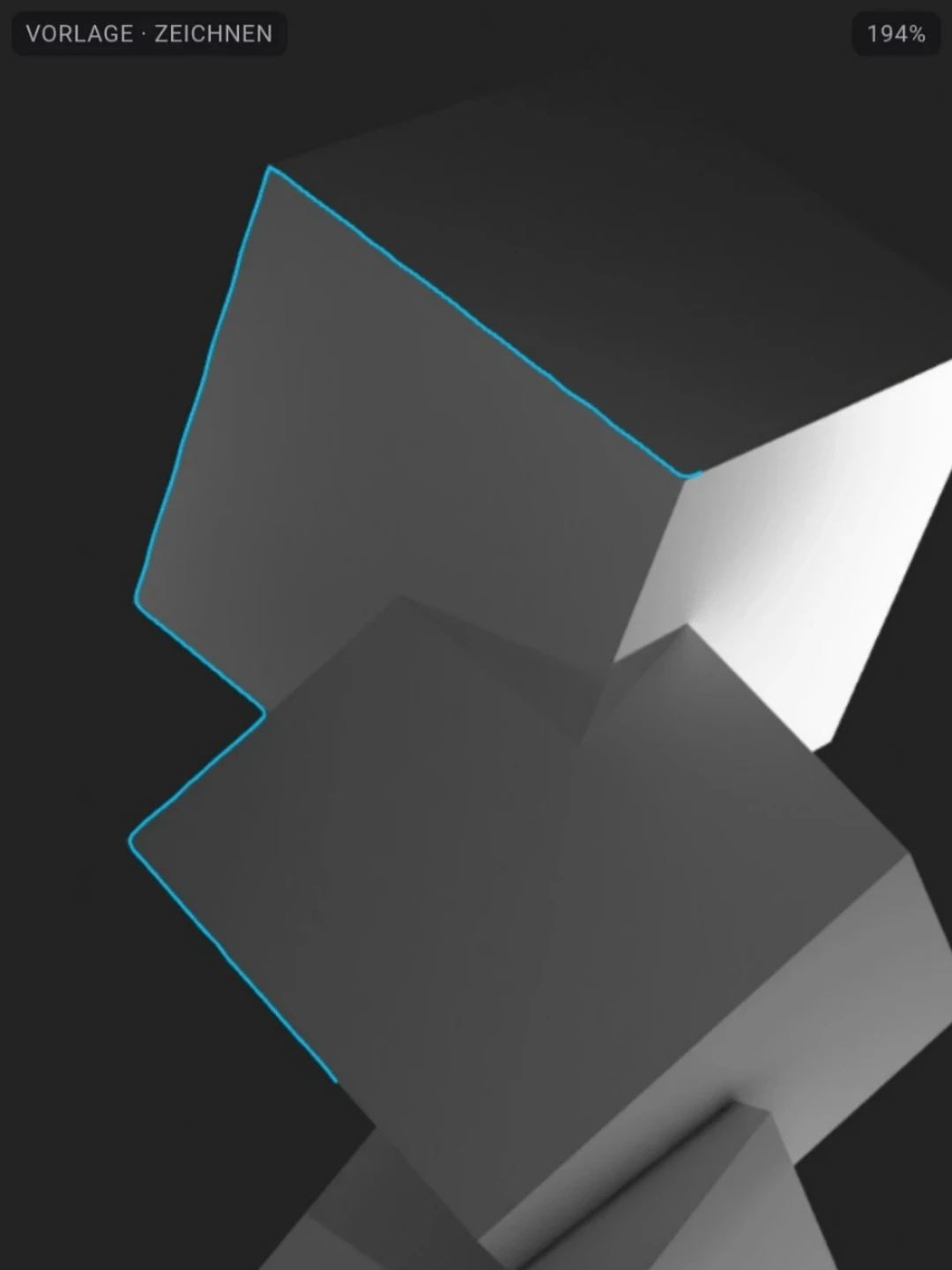
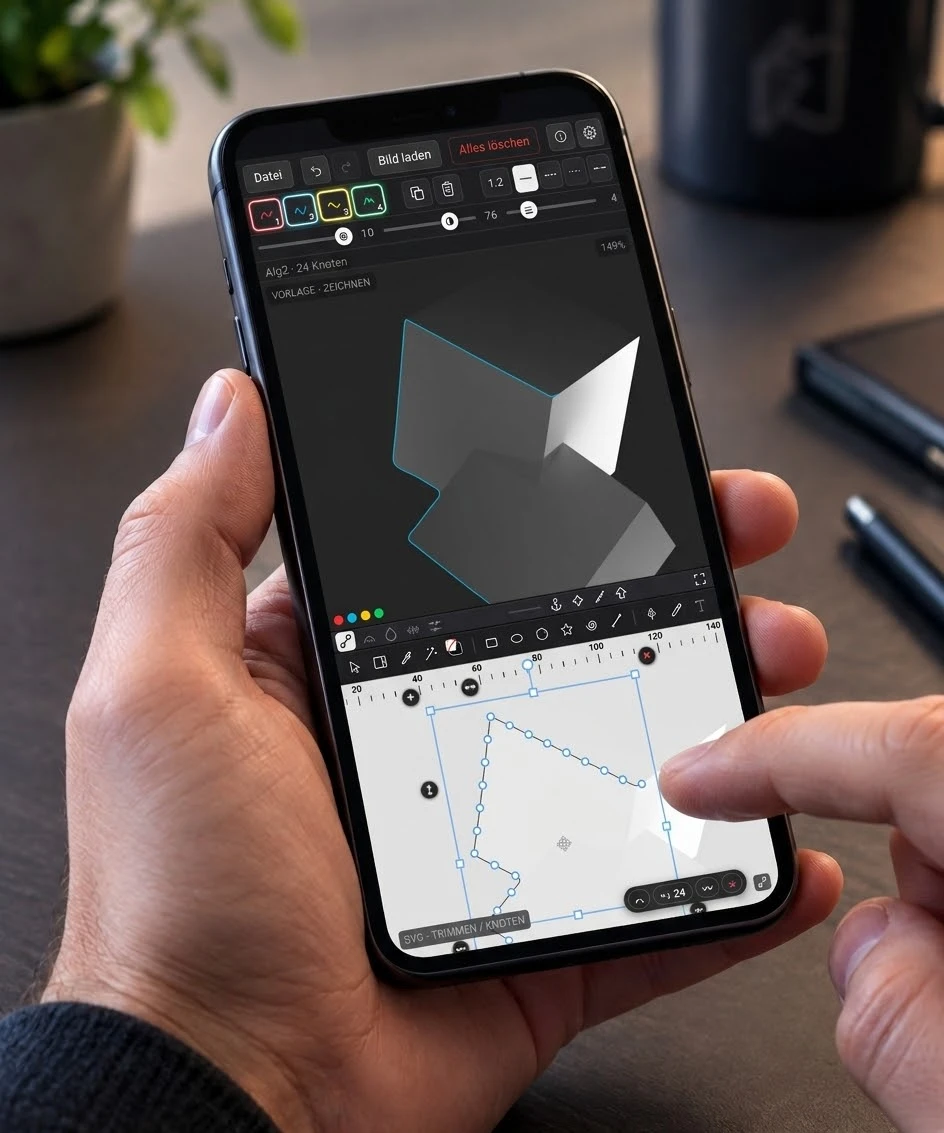
Curve tracking is one of Vectopalm’s three different contour detection mechanisms. Watch how the curve moves along different image edges and traces the contour step by step.
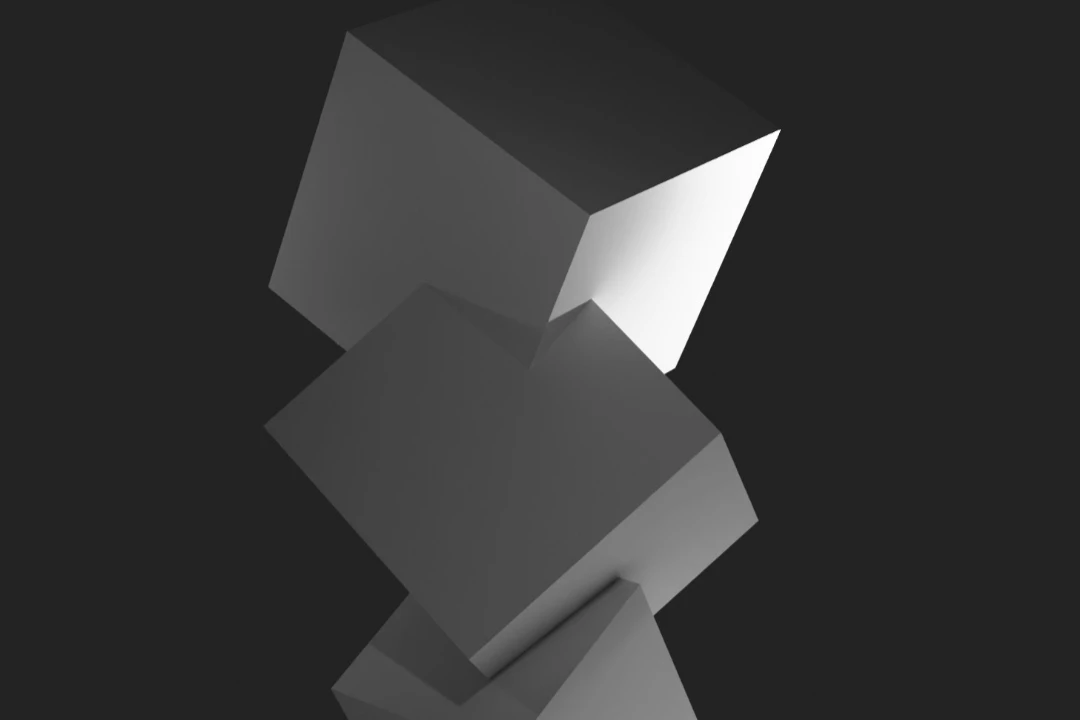
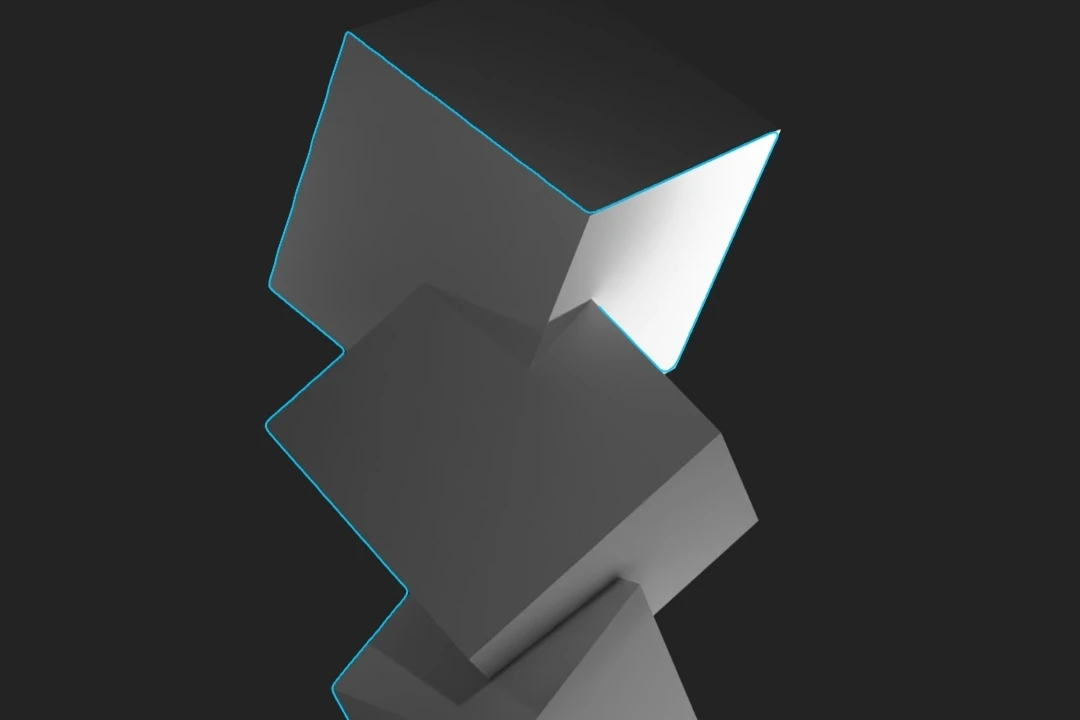
Click or tap the image to start curve tracking. You can replay the animation after it finishes.
VECTOPALM · WORKSPACE
Split workspace
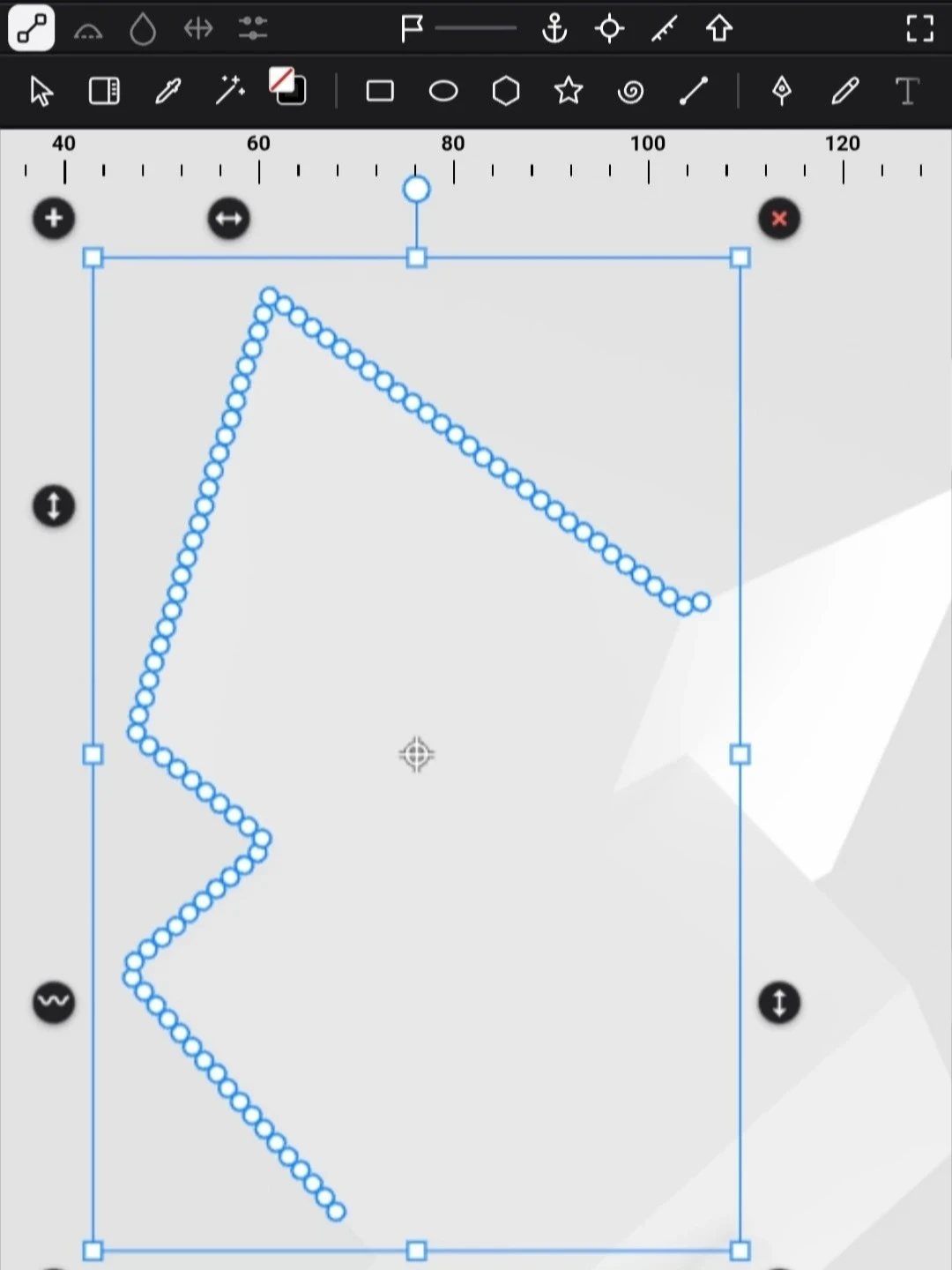
The image reference is above, with node mode below. The movable divider connects both views.